
Overview
The SeggWat iOS SDK is a Swift package that adds a native feedback button, screenshot annotation, ratings and in-app support chat to your SwiftUI app. It submits to the same project as your web widgets, so everything lands in one dashboard.
- Native SwiftUI, no web view and no external dependencies
- Feedback with screenshots: capture the screen, annotate it, send it
- Ratings: helpful (thumbs), star (1–5) and NPS (0–10)
- Review prompt: happy raters get Apple's App Store review dialog, unhappy ones the feedback form
- Support chat: users message your team and see replies live, with or without a backend
Requires iOS 16+ and Swift 5.9+. The review prompt and chat need SDK 1.3.0 or later.
Installation
In Xcode, choose File → Add Package Dependencies… and enter:
Or add it to Package.swift:
dependencies: [
    .package(url: "https://github.com/SeggWat/ios-sdk-seggwat.git", from: "1.3.0")
]
Native apps don't send an Origin header, so add your app's bundle ID to the project's Allowed Bundle IDs under Project → Settings → General. Requests from other bundle IDs get a 403.
Quickstart
Configure the SDK once when your app starts and attach the floating button to your root view:
import SwiftUI
import SeggWatSDK

@main
struct MyApp: App {
    init() {
        SeggWat.configure(projectKey: "your-project-key")
    }

    var body: some Scene {
        WindowGroup {
            ContentView()
                .seggwatFeedbackButton()
        }
    }
}
The button opens a feedback form with screenshot capture. To show who sent feedback, identify the user:
SeggWat.setUser("user-123", email: "jane@example.com")Open the form from your own UI with SeggWat.presentFeedback(), or hide the floating button per screen with SeggWat.shared.isButtonHidden = true.
Ratings
One method covers every rating type:
try await SeggWat.shared.submitRating(.helpful(true), screenName: "/settings")
try await SeggWat.shared.submitRating(.star(value: 4), screenName: "/checkout")
try await SeggWat.shared.submitRating(.nps(9))
Ratings show up in the same stats as your web widgets.
App Store review prompt
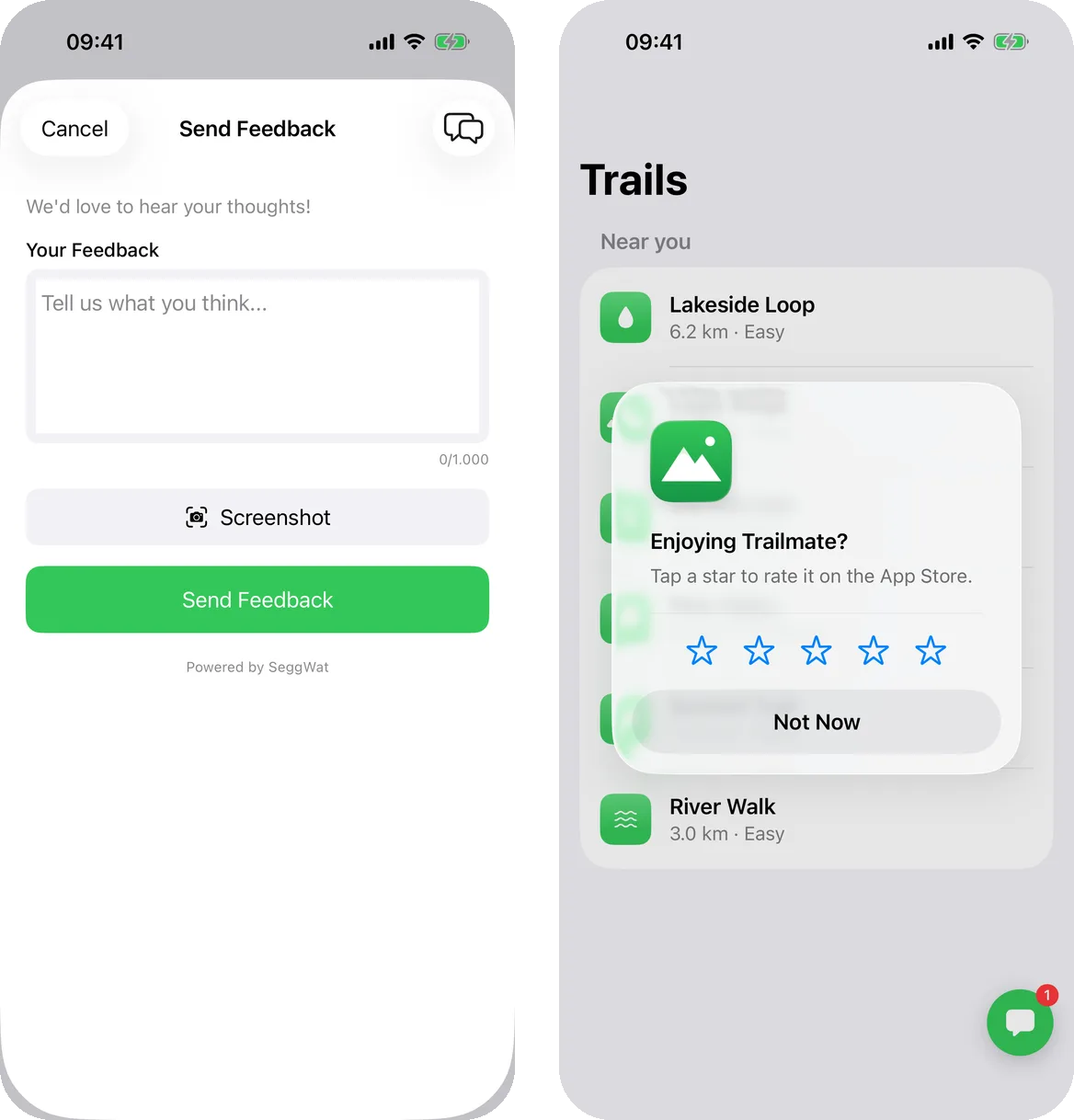
Turn ratings into App Store reviews: users who rate you highly get Apple's review dialog, everyone else gets the feedback form, so complaints reach you instead of the App Store.
SeggWat.configure(projectKey: "your-project-key", options: SeggWatOptions(
    reviewPrompt: ReviewPromptOptions(minimumStars: 4, minimumNps: 9) // the defaults
))

try await SeggWat.shared.submitRating(.star(value: 5)) // → App Store review dialog
try await SeggWat.shared.submitRating(.nps(4)) // → feedback form- Star ratings at or above
minimumStarsand NPS scores at or aboveminimumNpsask for a review. Lower ones open the feedback form. - Helpful (thumbs) ratings never trigger a prompt.
- The feedback form is presented by
.seggwatFeedbackButton(), so attach it somewhere in your view hierarchy.
Apple decides whether the review dialog actually appears: at most three times per user per year, and never in TestFlight. In debug builds it always shows.
Support chat
Users can message your team from inside the app. Replies you send from Messages → Live chat in the dashboard appear live while the chat is open; otherwise the floating button shows an unread count, and tapping it opens the conversation.
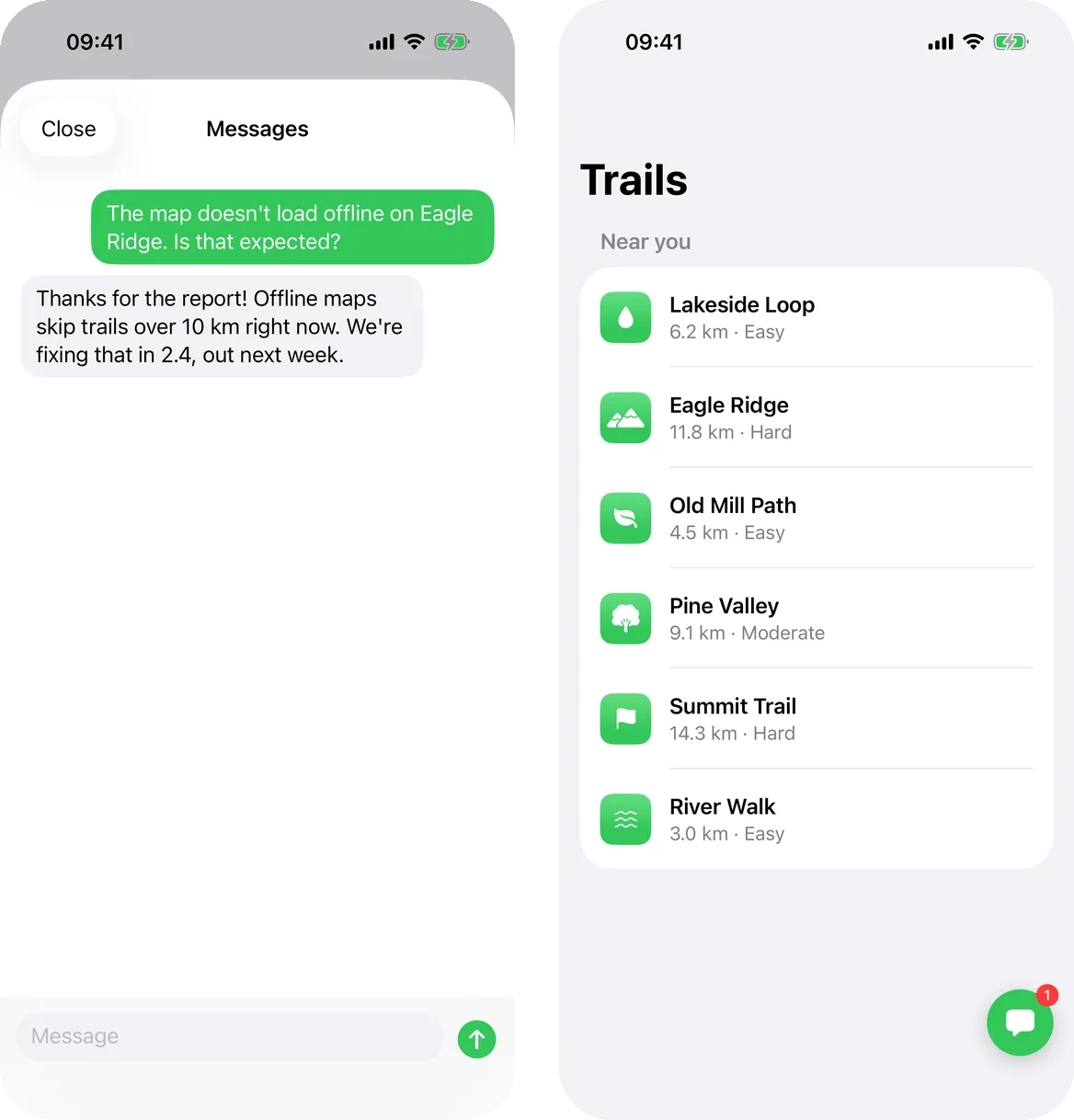
Chat is a Pro feature. Turn on Live Chat under Project → Settings → Widget Defaults, then pick how users are identified.
With your backend (signed tokens)
If your app has user accounts, your backend mints a short-lived token for the signed-in user, signed with the project's end-user signing secret. See End-User Authentication for the claims and signing.
// After sign-in
SeggWat.setChatToken(tokenFromYourBackend)

// On sign-out
SeggWat.setChatToken(nil)
The conversation follows the user across devices, and if they've left the app when you reply, they get the reply by email (when the token carries their email).
Without a backend (anonymous)
For apps without accounts or a server, turn on Anonymous chat in apps under Live Chat in Widget Defaults, then:
SeggWat.enableAnonymousChat()The SDK creates a random identity for this install and keeps it in the Keychain, so the conversation survives app restarts. SeggWat only stores a hash of it.
Anonymous users get no reply emails, and you won't know who they are. If the user signs in later, setChatToken(_:) starts a separate conversation.
Block spam with App Attest
Without further checks, anyone can script anonymous conversations into your inbox. Enter your Apple Team ID below the anonymous chat toggle to turn on App Attest: SeggWat then only accepts anonymous identities that Apple confirms come from a genuine install of your app on a real device.
- Find your Team ID in the Apple Developer account under Membership details.
- Your app's bundle ID must be in Allowed Bundle IDs; SeggWat checks attestations against
<Team ID>.<bundle ID>. Changing the Team ID or removing a bundle ID makes devices attest again. - In Xcode, add the App Attest capability under Signing & Capabilities.
- No code changes: the SDK attests automatically the first time it chats, once per install. Development and App Store builds both work.
The iOS Simulator can't use App Attest, so chat fails there while a Team ID is set. Leave the field empty while testing in the Simulator, and set it before you ship.
Opening the chat
With chat enabled, the feedback form shows a Chat with us button. To open the chat from your own UI, for example a "Contact support" row:
SeggWat.presentChat()SeggWat.shared.unreadCount is published, so you can show your own badge. The SDK refreshes it every minute while the app is in the foreground, and when a SeggWat notification is tapped. Call await SeggWat.shared.refreshUnreadCount() to update it right away.
Push notifications for replies
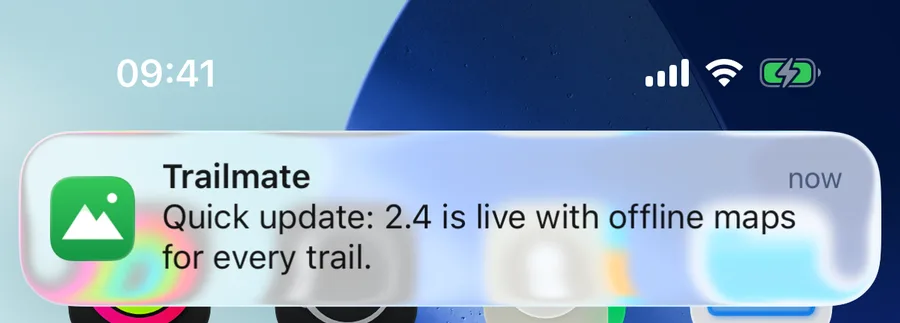
When your team replies and the user isn't looking at the chat, their iPhone gets a notification: your project name as the title, the reply as the text. Tapping it opens the conversation. Pushes are sent with your own Apple push key, so they come from your app.
graph TD
    A[Your team replies in the dashboard] --> B{Chat open in the app?}
    B -->|Yes| C[Reply appears live]
    B -->|No| D[SeggWat waits 10 seconds]
    D --> E{Seen by then?}
    E -->|Yes| F[No push]
    E -->|No| G[Push to the user's iPhone]
    G --> H[Tap opens the chat]
1. Create an APNs key
In your Apple Developer account, open Certificates, Identifiers & Profiles → Keys, add a key with Apple Push Notifications service (APNs) enabled, and download the .p8 file. Note the Key ID shown next to it and your Team ID (under Membership details). Leave the key's environment at Sandbox & Production: a key limited to one environment can't reach both Xcode and App Store builds.
2. Add it in SeggWat
Open Project → Settings → Widget Defaults. With Live Chat on, the iOS app: push notifications card asks for your Team ID, Key ID, bundle ID and the .p8 file. Pick the downloaded AuthKey_….p8 and the Key ID fills in from its name, or paste the file's contents. Click Turn on push. SeggWat checks the key with Apple before saving, so a wrong Key ID or Team ID shows up right away. The key is stored encrypted and never shown again; upload a new one to replace it.
Once your app has registered a device, the card shows Send test push. It sends a notification to the most recently registered device and shows Apple's answer if it fails.
3. Wire up your app
Add the Push Notifications capability to your app target, then pass the device token and notification taps to the SDK:
import SwiftUI
import SeggWatSDK
import UserNotifications

final class AppDelegate: NSObject, UIApplicationDelegate, UNUserNotificationCenterDelegate {
    func application(_ application: UIApplication,
                     didFinishLaunchingWithOptions launchOptions: [UIApplication.LaunchOptionsKey: Any]? = nil) -> Bool {
        UNUserNotificationCenter.current().delegate = self
        return true
    }

    func application(_ application: UIApplication,
                     didRegisterForRemoteNotificationsWithDeviceToken deviceToken: Data) {
        SeggWat.setPushToken(deviceToken)
    }

    func userNotificationCenter(_ center: UNUserNotificationCenter,
                                didReceive response: UNNotificationResponse) async {
        SeggWat.handleNotification(response.notification.request.content.userInfo)
    }
}

@main
struct MyApp: App {
    @UIApplicationDelegateAdaptor(AppDelegate.self) var appDelegate

    init() {
        SeggWat.configure(projectKey: "your-project-key")
        SeggWat.enablePushNotifications()
    }

    var body: some Scene {
        WindowGroup { ContentView().seggwatFeedbackButton() }
    }
}
If your app already has a notification delegate, call SeggWat.handleNotification(_:) from its didReceive. It returns false for your own notifications, so you can handle those as before.
How it behaves
- Permission at the right moment. The SDK asks for notification permission after the user sends their first chat message, when they have a reason to say yes, never at launch. Don't ask yourself.
- No double alerts. A push goes out about 10 seconds after a reply, and only if the user hasn't already seen it in an open chat.
- Follows the user. Signing in with
setChatToken(_:)moves the device to the new identity;setChatToken(nil)stops pushes for the old one. If the device is offline at sign-out, the SDK retries until the server confirms. - The right environment. The SDK reads the app's signing to tell Xcode builds (APNs sandbox) from TestFlight and App Store builds (production).
- Live chat only. Replies to a user's feedback item reach them by email, not push, because the SDK has no screen for feedback threads.
Test on a real iPhone. Simulator builds usually can't get an APNs token, though you can check the tap handling there with xcrun simctl push and a payload containing a "seggwat" key.
Set up with an AI coding assistant
The iOS app card in Settings → Widget Defaults has a prompt for Claude Code, Cursor or similar tools, already filled in with your project key and settings. Paste it into the assistant in your Xcode project and it adds the package, the feedback button, the review prompt, chat and push notifications, then tells you how to verify on a device.
Localization
The SDK ships English, German and Swedish and follows the device language. Override it with SeggWatOptions(language: "de").